
1 — SOTA Hub Is Not Running in the System Tray
The SOTA Hub must be running in the background at all times. Check the system tray (near the clock in the bottom-right corner of your screen) for a small cloud icon — it may be hidden inside the overflow arrow.
- Locate the cloud icon in the system tray. Hover over it to confirm it stays visible.

- If the icon disappears: relaunch SOTA Hub by double-clicking the shortcut on the desktop, then refresh the browser. (If you are on an older version, a full PC restart may be required instead.)
- If the icon was already present or the error persists after relaunching, proceed to Cause 2.
2 — Chrome Is Blocking Local App Communication
Chrome can block the browser from communicating with locally installed apps. This setting must be enabled for SOTA Cloud to work correctly.
- Click the circle/lock icon to the left of your SOTA Cloud URL in the Chrome address bar.
- Find the option to allow apps to communicate with SOTA Cloud and toggle it on. (See the example screenshot below for reference.)
Chrome: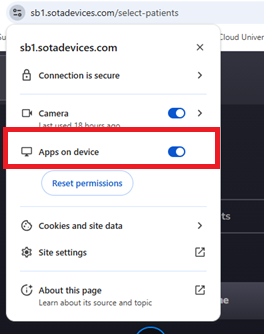
Edge: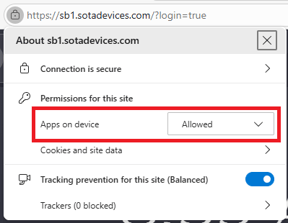
- Close the options panel and click Reload or Refresh button.
- If the setting was already allowed or the error persists, proceed to Cause 3.
Using App Mode? If SOTA Cloud is used as a Chrome or Edge app (app mode), this option is not accessible from within the app window. You will need to open Chrome or Edge normally, type in your SOTA Cloud URL, log in, and adjust the setting there.
For Enterprise Users - IT Administrators, this should be deployed organization-wide using Group Policy (GPO):
-
Policy Name: Allow access to local network endpoints for URLs
-
Chromium Policy:
LocalNetworkAccessAllowedForUrls
Add the following values:
https://*.sotadevices.comhttps://<your practice subdomain>.sotadevices.com
3 — “Bridge Over RDS” Is Enabled in SOTA Hub Settings
If the Bridge Over RDS option is checked, it can cause this error on standard (non-remote) workstations. Verify and disable it if needed.
- Right-click the SOTA Hub icon in the system tray and select Settings.

- Navigate to the Misc
- Uncheck Bridge Over RDS if it is enabled.
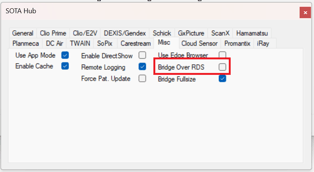
- If this was already unchecked or the error persists, proceed to Cause 4.
4 — SOTA Cloud Is Being Opened Inside a Remote Desktop App
If the Chrome browser icon in your taskbar shows a small overlay icon in the upper-right corner, SOTA Cloud is being launched inside a remote desktop session rather than directly on the local PC.
- Identify whether this is the case by checking the taskbar icon for an overlay symbol (see the example screenshot below).
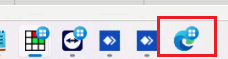
- If confirmed: your IT team will need to reconfigure the bridge so that SOTA Cloud opens on the local PC rather than inside the remote desktop app. If they have not done this before, they can contact our support team for guidance.
⚠ Known Issue — ASPRO Dental At the time of this article, there is a known compatibility issue causing this error when SOTA Cloud is accessed from within ASPRO Dental. There is no current fix from our side. In the meantime, please use one of the following workarounds:
- Switch to Microsoft Edge to access SOTA Cloud.
- Contact ASPRO Dental support to check whether a configuration setting needs to be adjusted on their end.
Still having trouble? Contact SOTA Cloud Support for further assistance